
.png?fit=max&auto=format&n=fTXEPIUfjW4rC1Pi&q=85&s=85d7b852879d29ad2bde9b743307ab0e)
Example: Your company setup creates all your employee profiles through a sync with a Payroll System or HR System. In special circumstances where an employee is not in these systems and you wish them to be added to Simplifi, follow the steps below.Documentation Index
Fetch the complete documentation index at: https://docs.simplifi.work/llms.txt
Use this file to discover all available pages before exploring further.
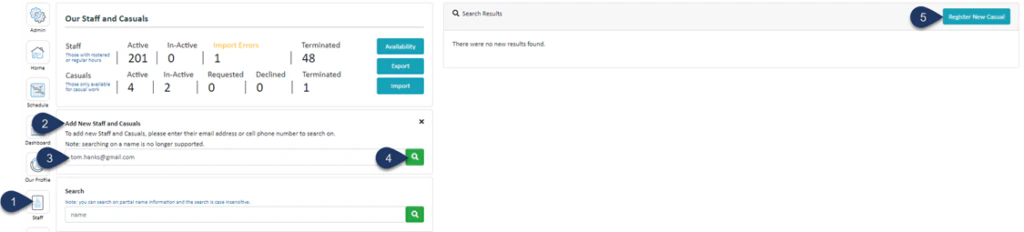
- Select Staff
- Click on the text ‘Add New Staff and Casuals’
- Enter the email address of the employee you wish to add – this is to ensure they don’t already have an account with StaffSync
- Select the Search Icon
- If there are no search results – then Click – Register New Casual
(If there are search results – then you can click to add their profile)
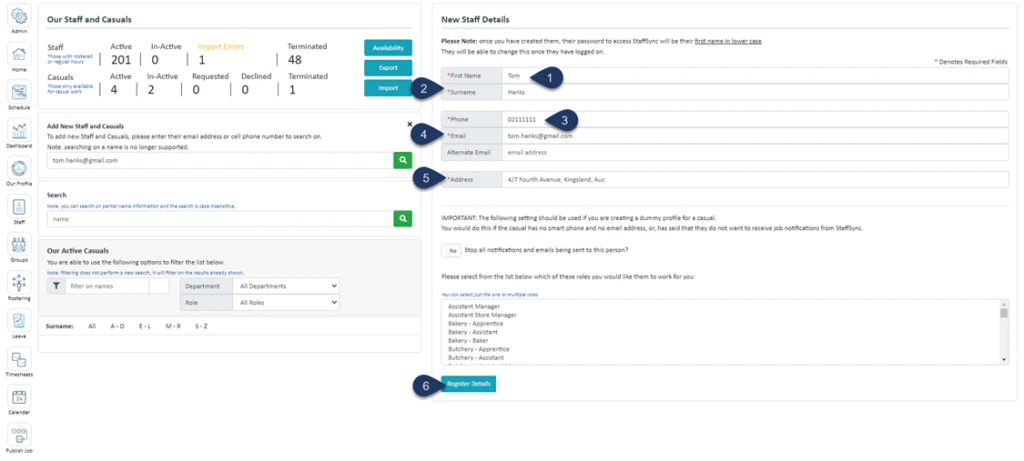
- Enter the Employee’s Name
- Enter the Last Name
- Enter the Phone Number
- Enter the Email Address
- Enter their Address. When you start typing in the employee’s address select from the options that will drop down – if unknown, you can just type in the suburb or city.
- Select Register Details
This should now open the Employee Profile
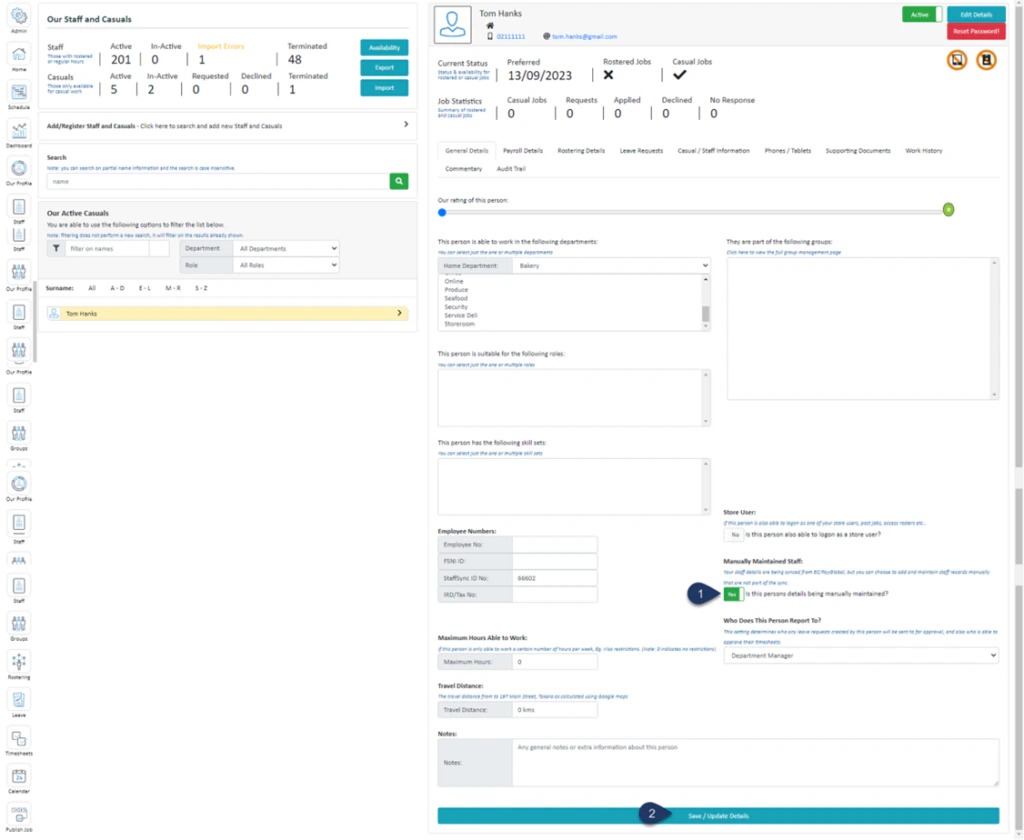
- In the Employee’s profile’s General Details, switch the ‘Manually Maintained Staff’ toggle to YES. If you do not do this, then when the Employee Central Sync next happens, this employee will be made inactive.
Continue setting up this employee as you would normally