
.png?fit=max&auto=format&n=fTXEPIUfjW4rC1Pi&q=85&s=85d7b852879d29ad2bde9b743307ab0e)
Documentation Index
Fetch the complete documentation index at: https://docs.simplifi.work/llms.txt
Use this file to discover all available pages before exploring further.
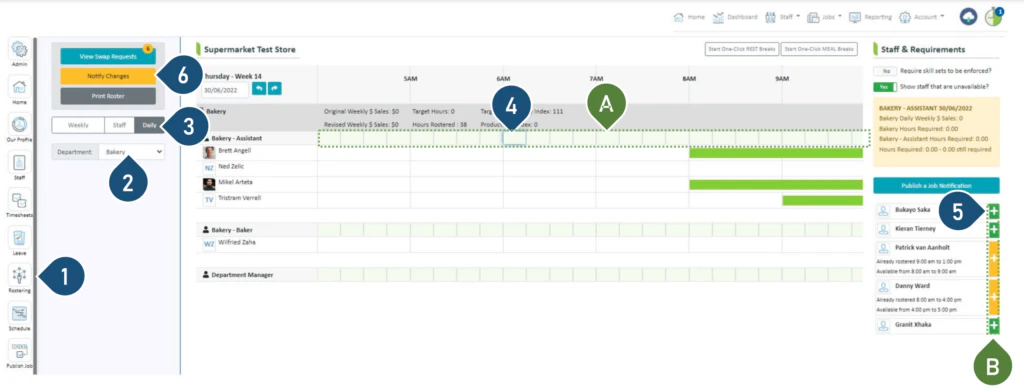
- Select the Rostering button.
- Select the Department.
- Select the Daily view.
- Click on the timeslot that you wish to start this new staff member from e.g. 8:30 am is selected as the start time in the above example.
- Click on the + to add the staff member to your roster.
- Click on Notify Changes – StaffSync will notify the staff who have changes via push notifications on their phones.
Note: The system automatically adds the shift from your selected slot time up until you no longer need a staff member; as per the example above, 8:30am to 3:00pm. You may wish to adjust the finish time of your shift.